
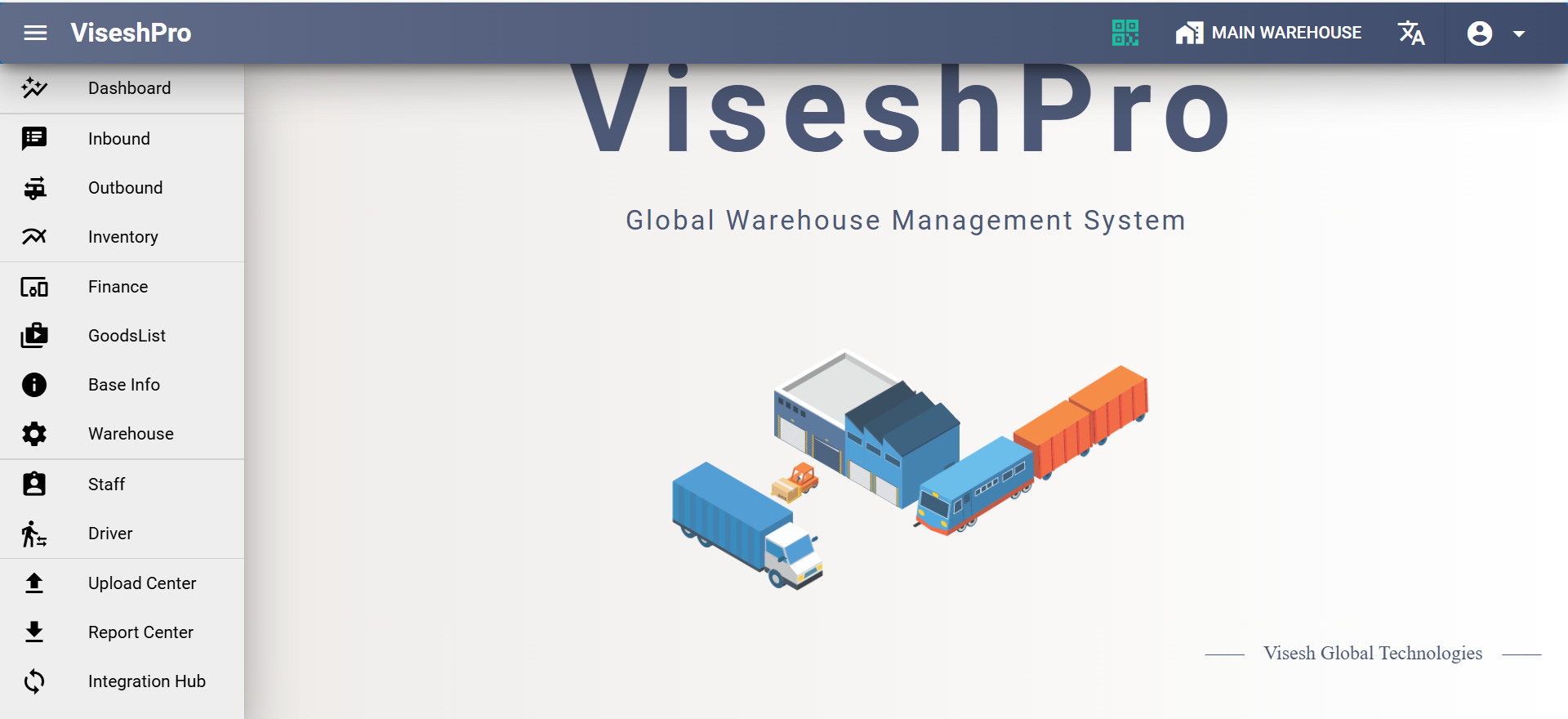
Homepage – LogIn User
The system automatically displays only the tabs and options that match the user’s role and access permissions.
This ensures each user sees a clean, relevant interface. Unauthorized features remain hidden for security and simplicity.
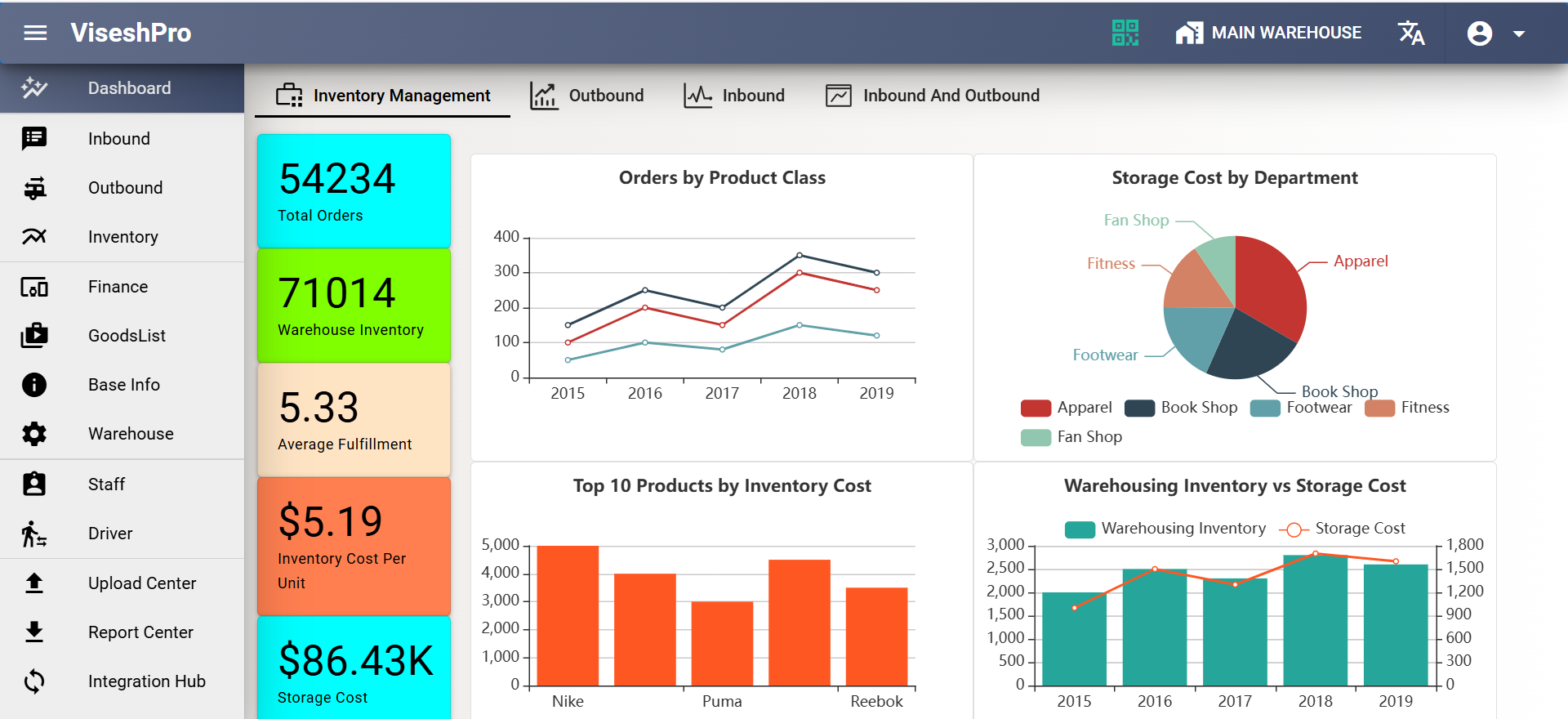
Real-time Warehouse Analytics
Comprehensive dashboard displaying key metrics including inbound receipts, outbound shipments, inventory levels, and warehouse utilization across multiple locations.
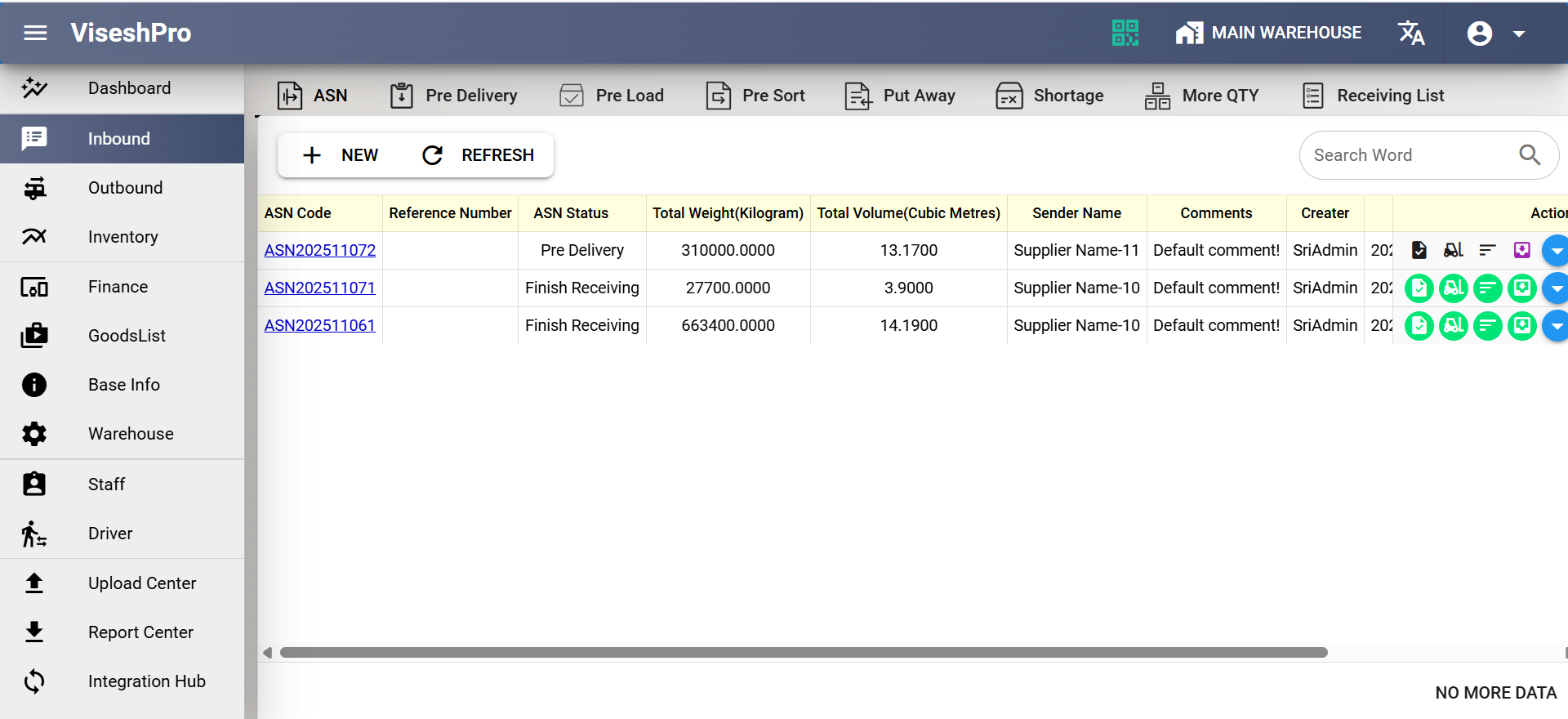
Inbound Operations
This screen displays the Inbound ASN management module in ViseshPro, showing detailed information such as ASN Code, reference numbers, statuses, sender details, weight, volume, and comments.
The interface also includes action shortcuts, search capability, and tab navigation for different inbound-related functions like Pre-Delivery, Pre-Load, Sorting, and Put-Away.
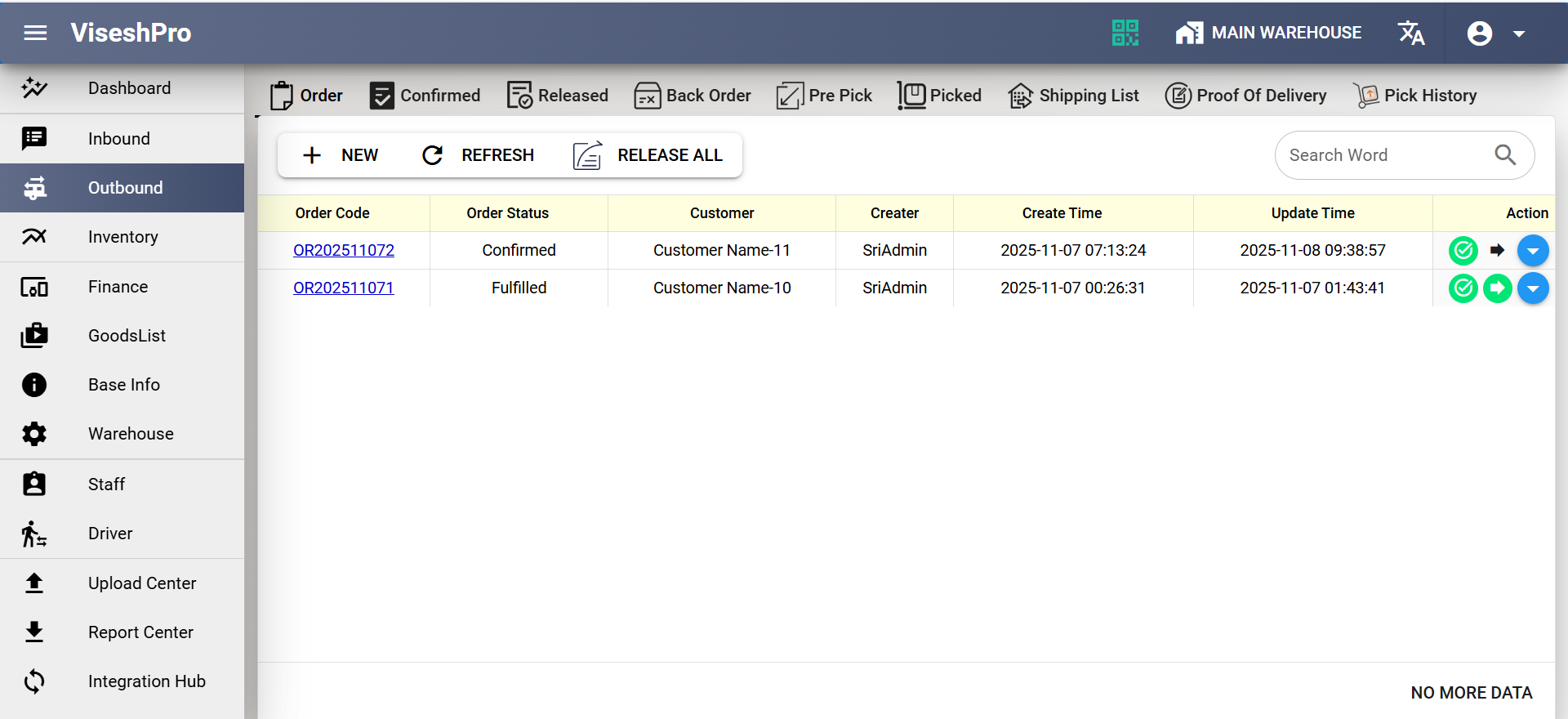
Outbound Operations
This screen shows the Outbound Order Management module, highlighting order codes, order statuses, customer details, creator information, and timestamps.
Users can add new orders, refresh data, release all orders, and navigate through outbound workflow stages such as Confirmed, Released, Back Order, Picking, and Shipping processes.
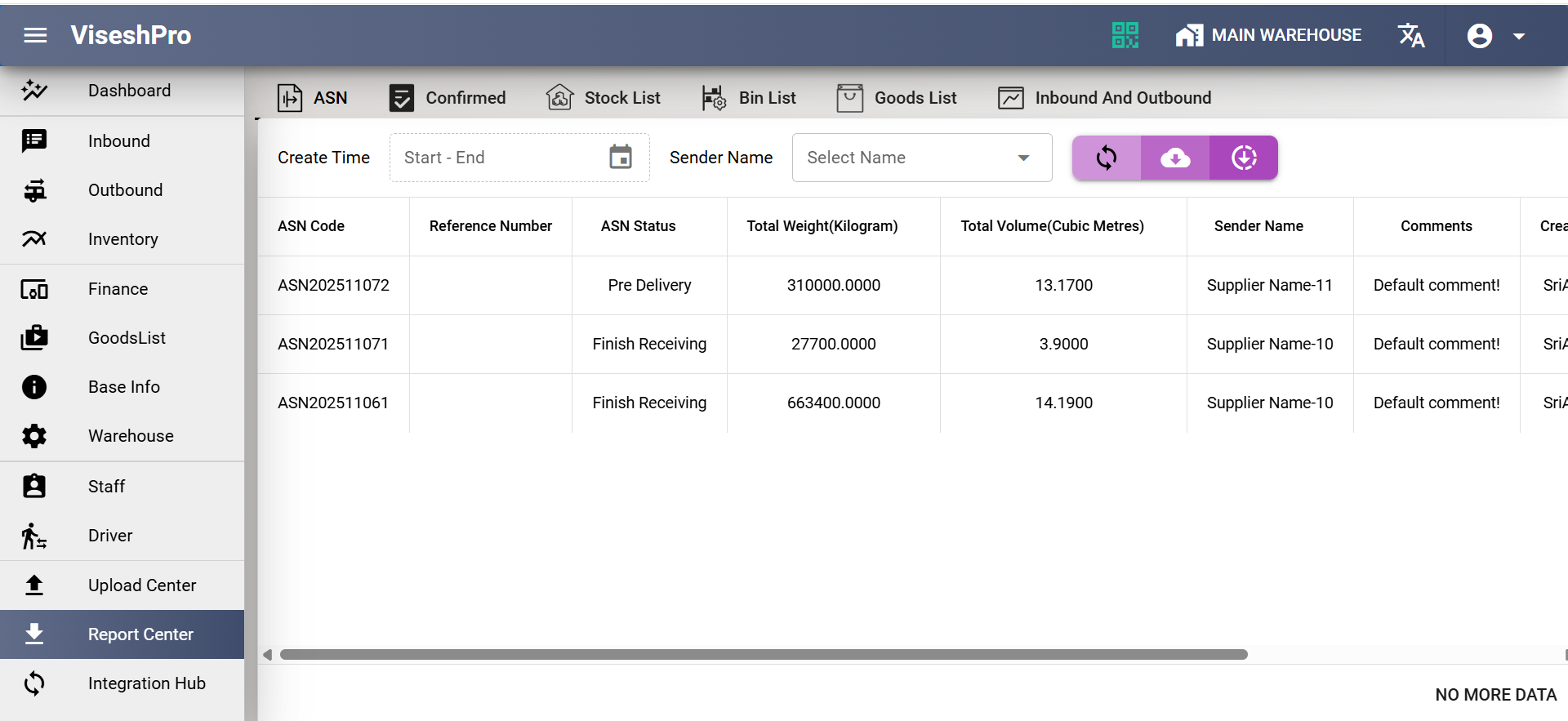
ASN Reports
Customizable reports and dashboards for inventory analysis, performance metrics, compliance audits, and operational insights with export capabilities.
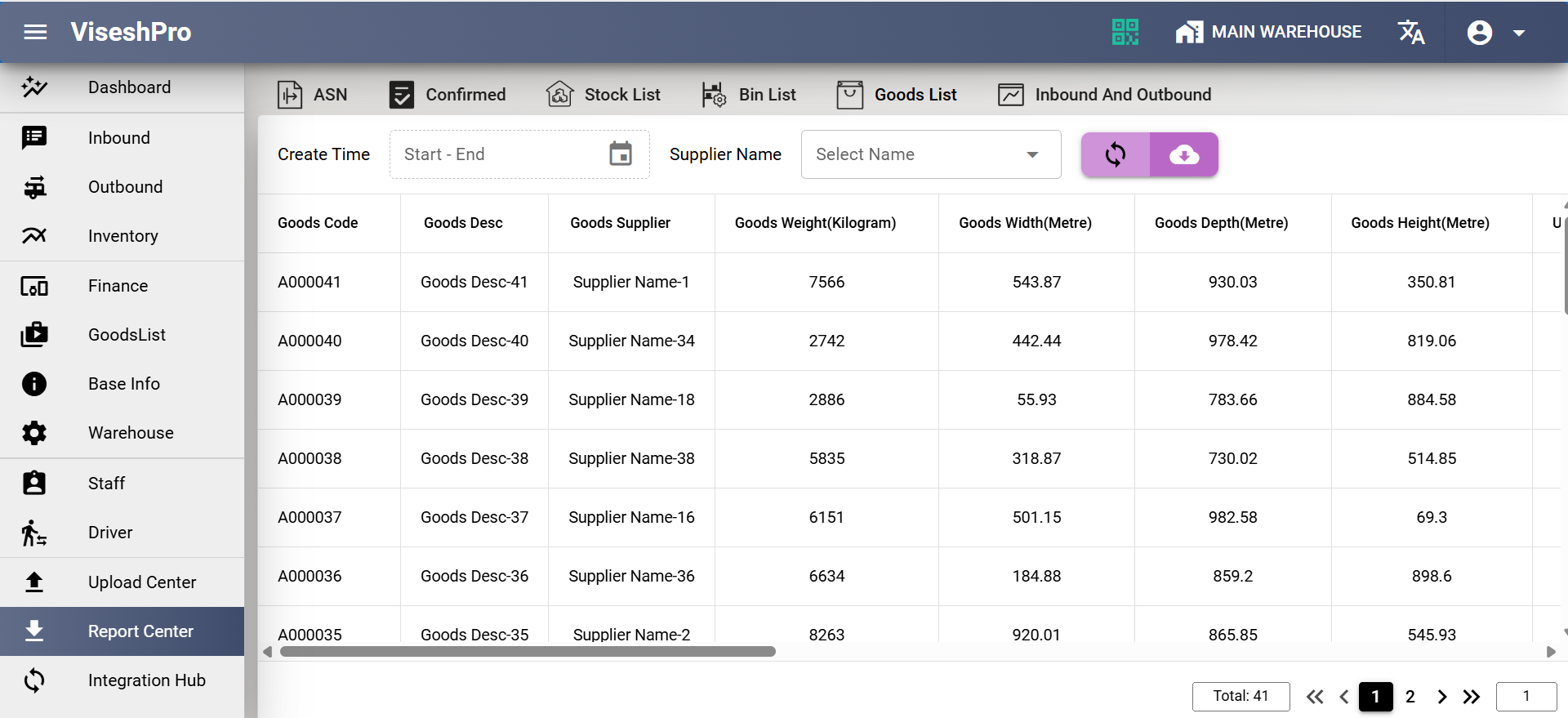
Inbound and Outbound Reports
This screen displays a detailed Goods List within the Report Center, offering a comprehensive view of product attributes such as weight, dimensions, supplier information, and creation time.
Users can filter data by supplier and date range, refresh records, and export reports for analysis. It provides a structured and data-rich interface to support warehouse auditing, stock validation, and operational reporting.
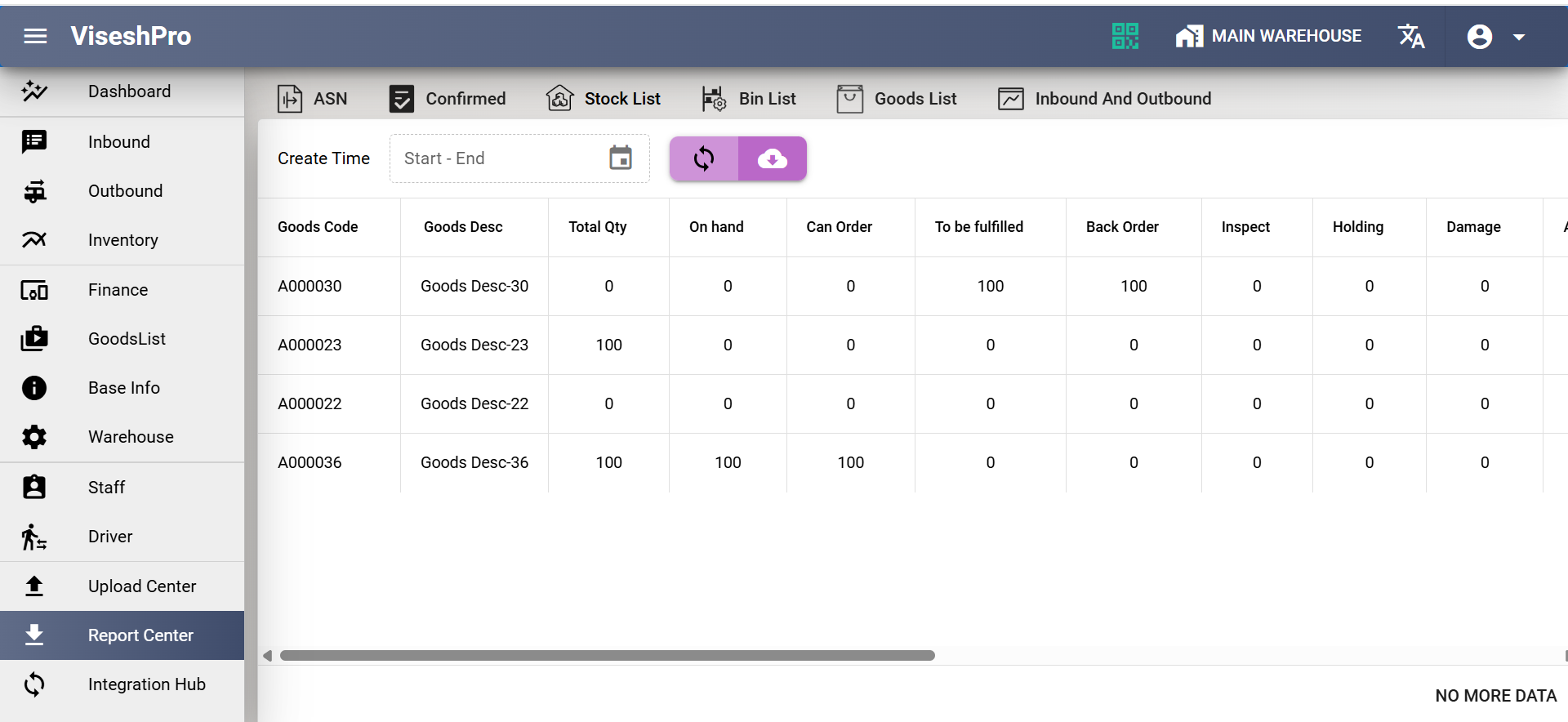
Stocks Reports
This Stock List view allows users to review inventory quantities across multiple operational stages, including on-hand, backorder, holding, inspection, and damage categories. The interface supports filtering by date, refreshing stock data, and exporting reports.
It offers an organized and detailed snapshot of warehouse inventory status for planning and reconciliation activities.
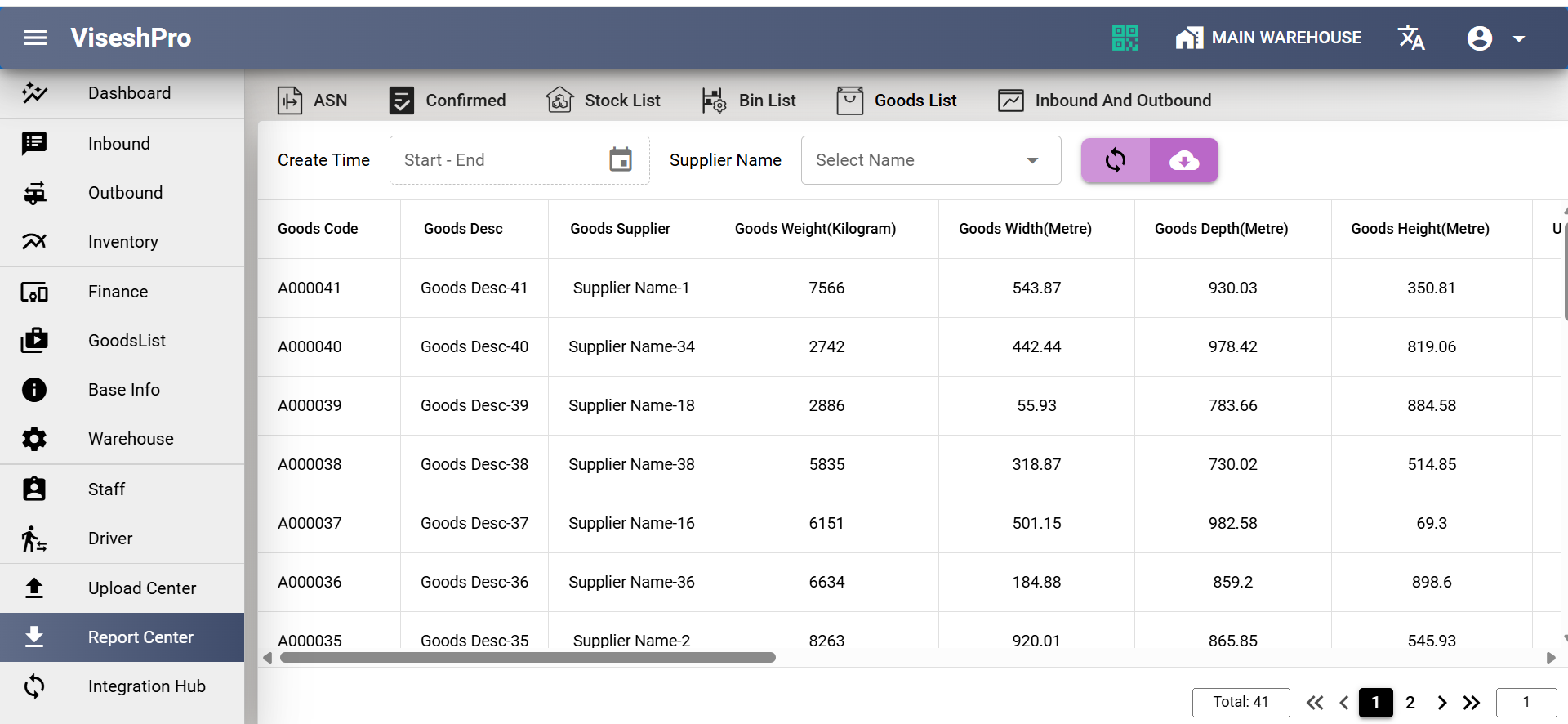
Goods Reports
This screen provides a comprehensive Goods List within the Report Center, displaying product details such as goods codes, descriptions, supplier names, weights, widths, depths, and heights.
Users can filter records by date range and supplier, refresh the list, or export the dataset. It supports accurate warehouse catalog management and enhances visibility across all stored items.
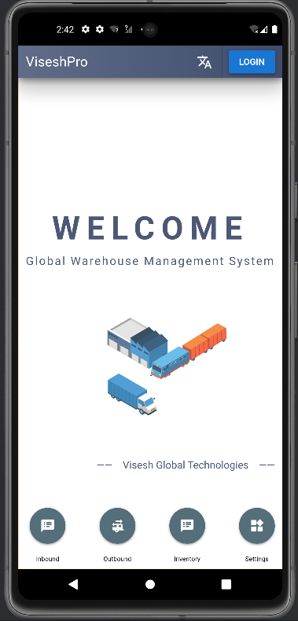
App – Home
The welcome screen of the ViseshPro mobile application introduces users to the Global Warehouse Management System with a clean, modern interface.
It highlights core modules such as Inbound, Outbound, Inventory, and Settings, enabling quick navigation for warehouse operators.
The screen emphasizes simplicity and ease of access for new and returning users.
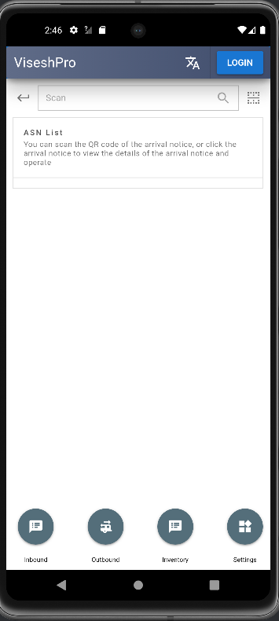
Warehouse Connect
This screen presents the ASN List section of the ViseshPro mobile app, allowing users to scan QR codes or manually search arrival notices.
It provides a streamlined interface for reviewing inbound shipment details and supports quick item verification, enabling smooth warehouse receiving operations.
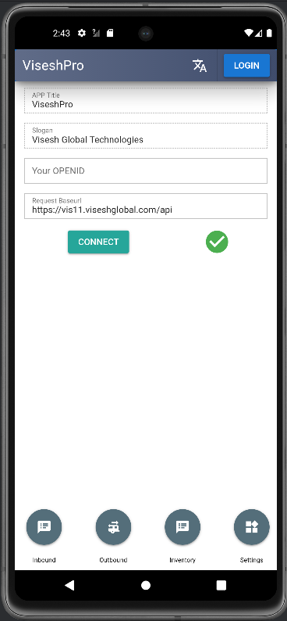
Operations
The connection setup screen enables users to configure the app by entering their OpenID and the warehouse API endpoint.
It ensures secure connectivity with the ViseshPro backend server, verifying the integration before login.
This simplifies onboarding and makes the app ready for real-time warehouse data access.
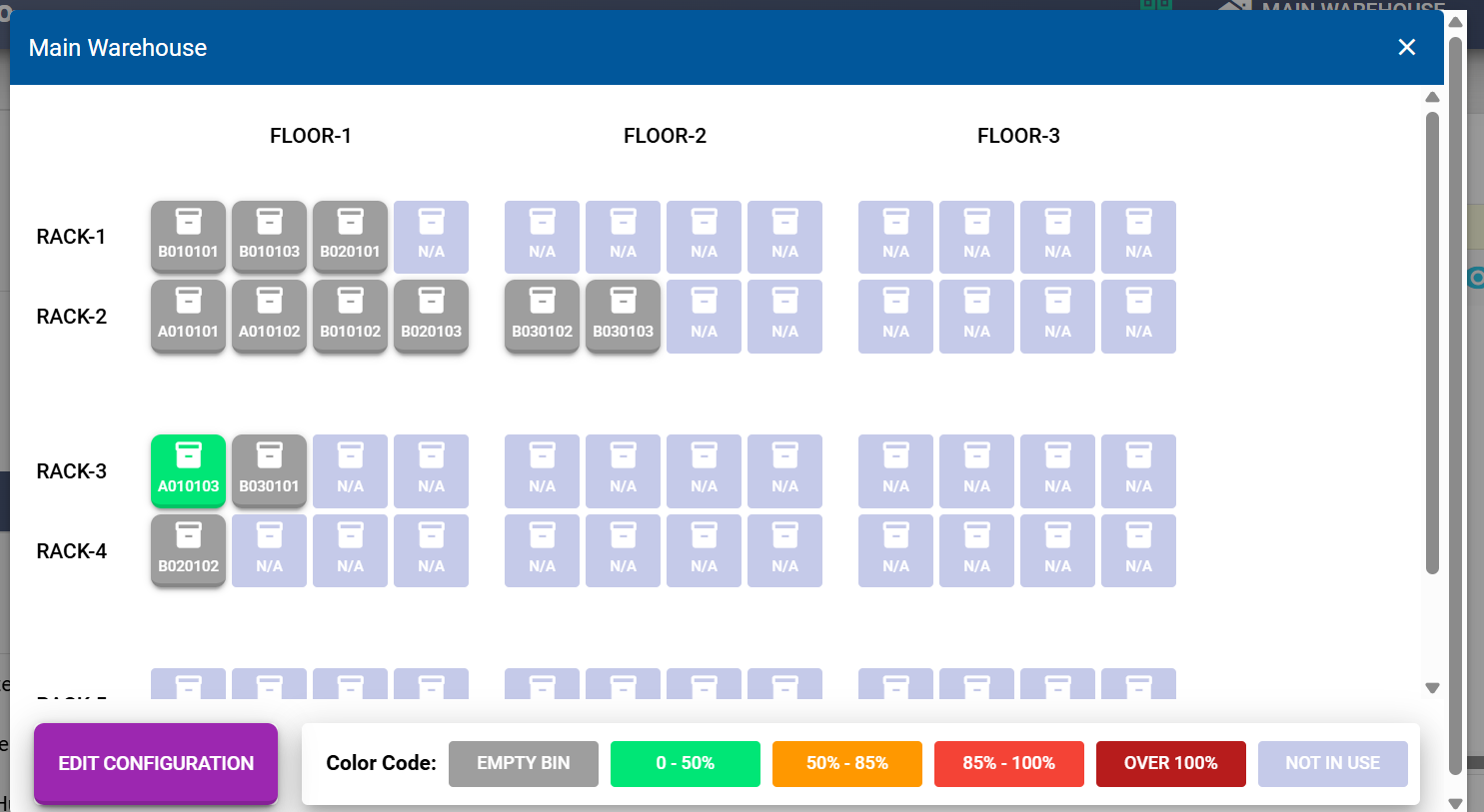
Warehouse Racks and Bins
This screen provides a visual layout of racks and bins across warehouse floors, showing occupancy through color-coded indicators ranging from empty to over-capacity.
Users can explore the structure, review bin usage, and modify configurations. It delivers real-time spatial insights for efficient storage planning and capacity optimization.
Upload Center
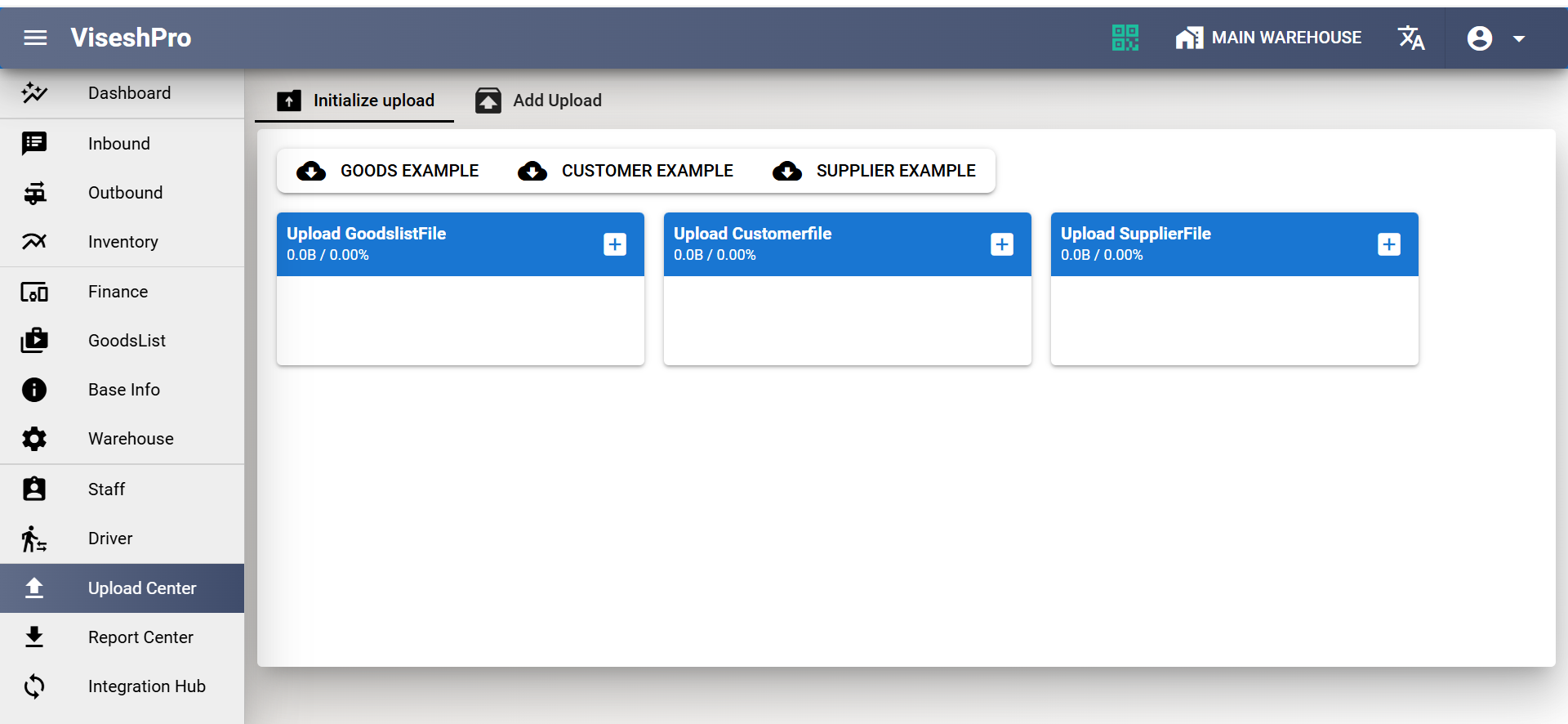
This screen displays the Upload Center where users can upload different file types including goods lists, customer data, and supplier lists.
The interface provides example templates and upload progress indicators. It simplifies bulk data onboarding and ensures clean data entry for warehouse operations.
Warehouse Management
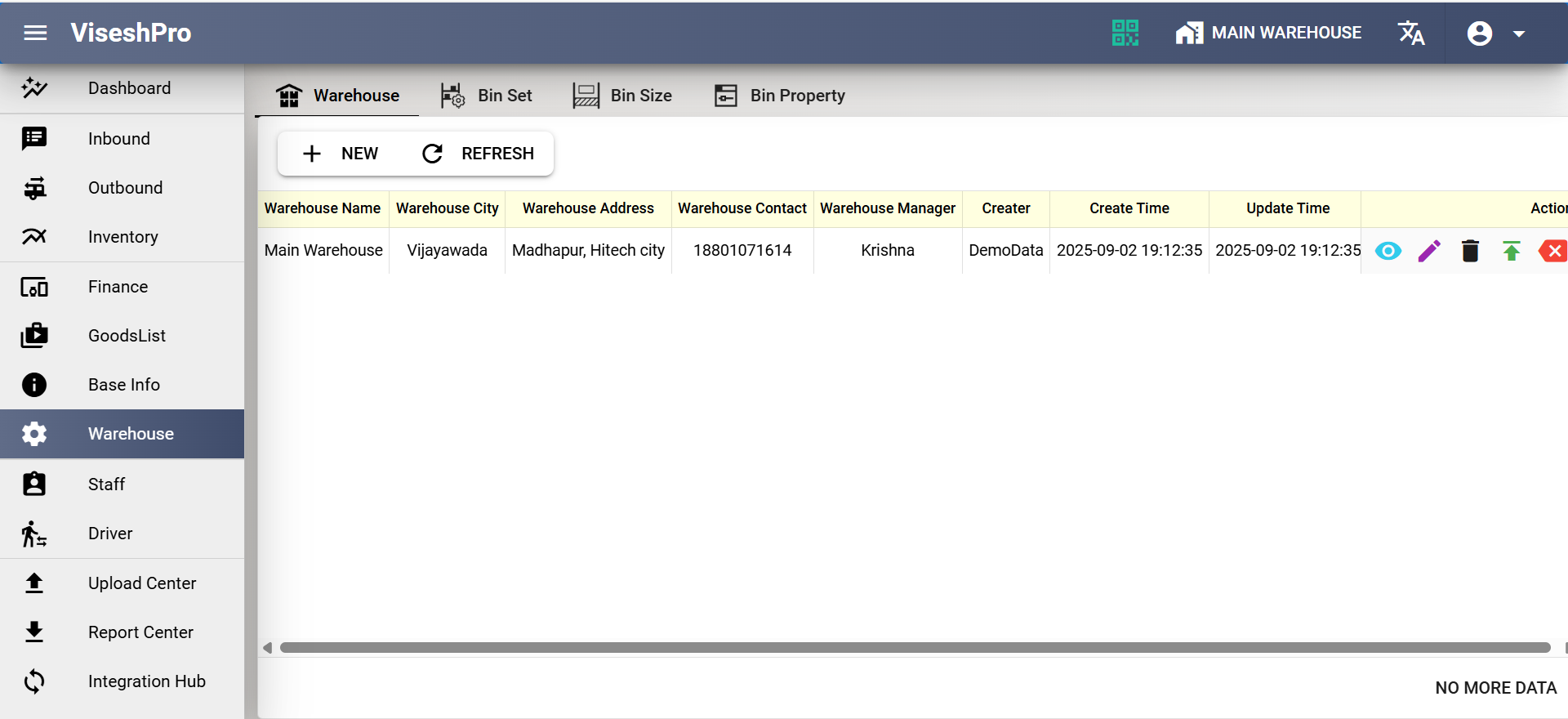
This screen displays the list of configured warehouses, including name, city, full address, manager, contact number, and audit timestamps.
Users can create new warehouses, refresh information, and perform actions such as viewing, updating, or deleting records. It provides centralized control over all warehouse locations within the organization.
Integration Hub
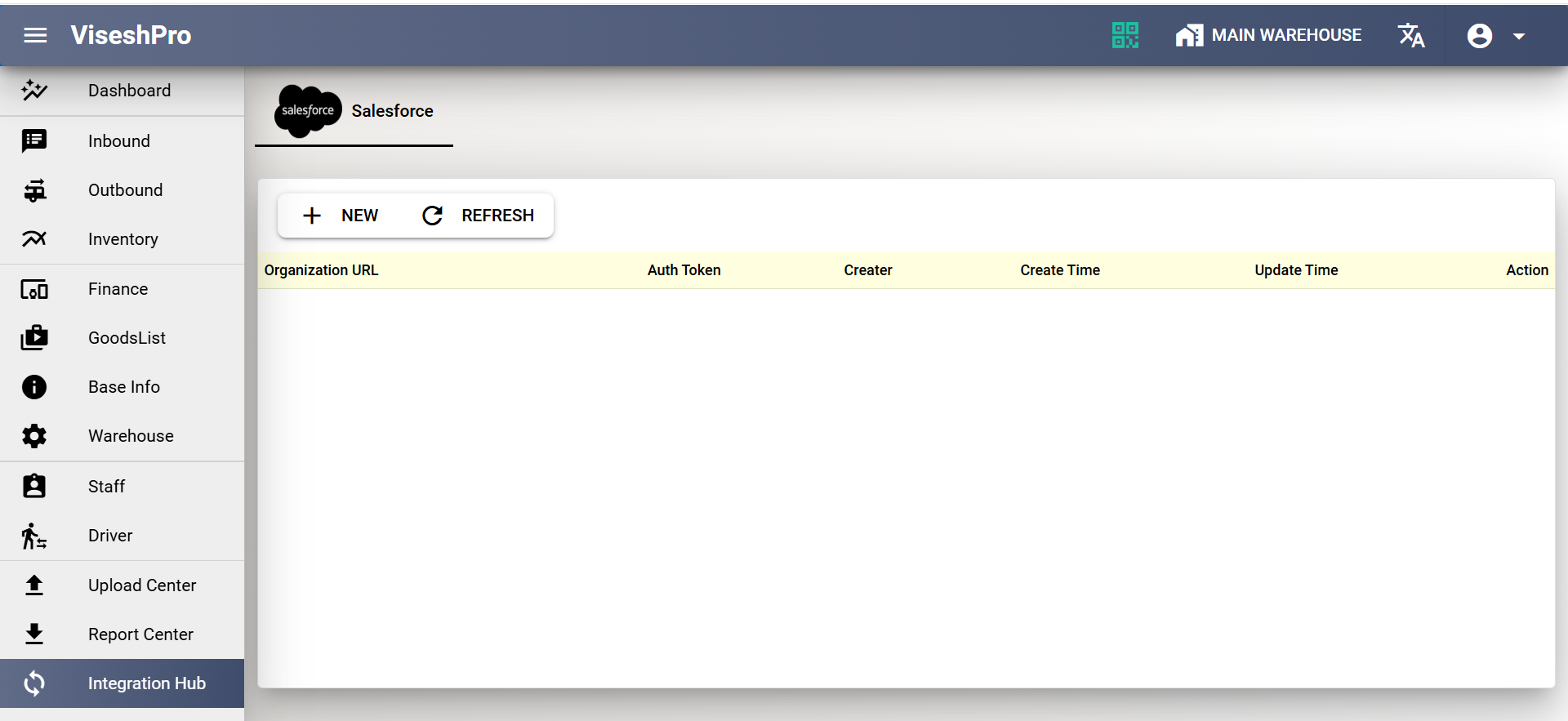
This screen shows the Salesforce integration module inside the Integration Hub. Users can configure the organization URL, authentication token, and track creation or update timestamps.
It provides a centralized setup panel for enabling seamless data exchange between ViseshPro and Salesforce, supporting automated workflows and synchronized operations.
Drivers Details
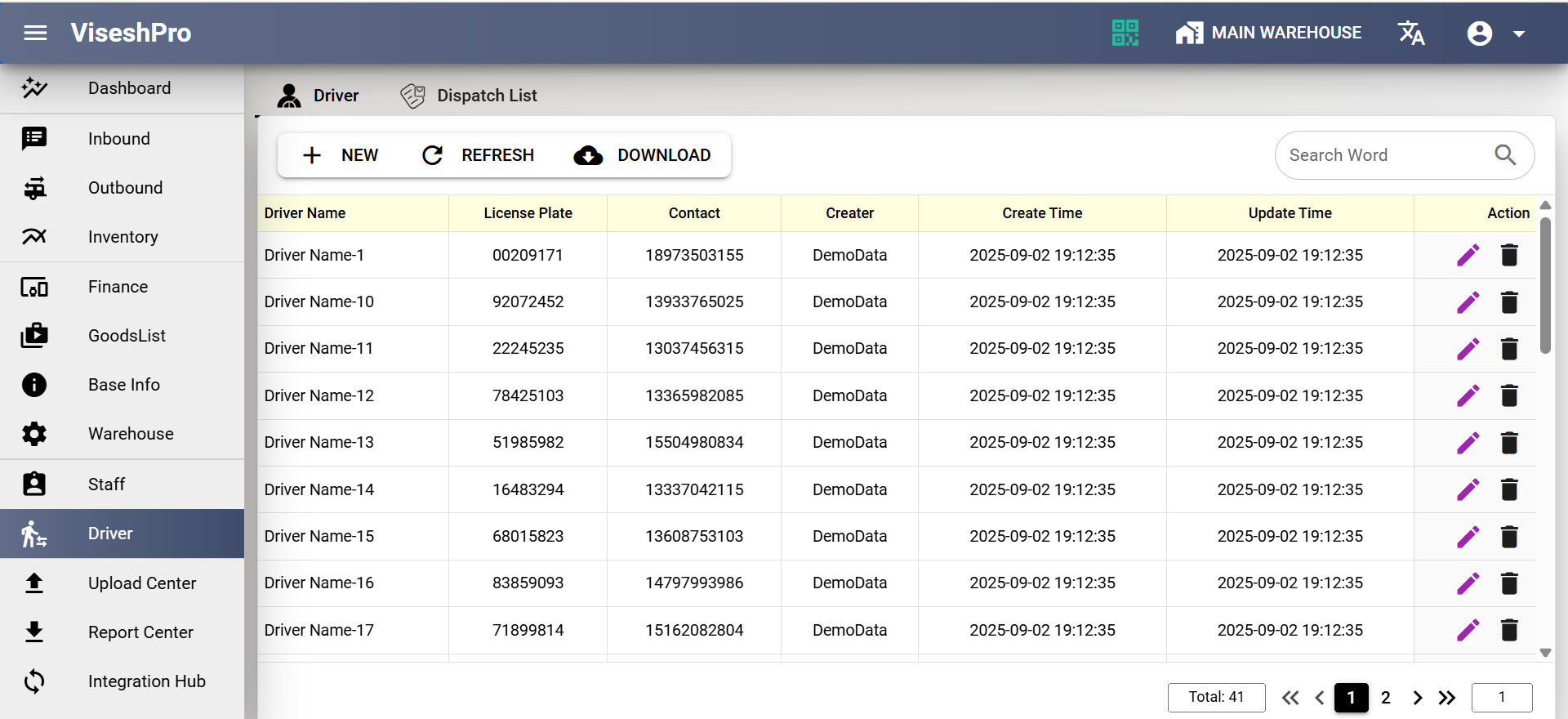
This screen provides a complete list of drivers within the warehouse system, showing license details, contact information, creator, and timestamps.
Users can add new drivers, refresh existing data, or download records. The interface supports quick edits and deletions, making driver management simple, organized, and fully traceable.
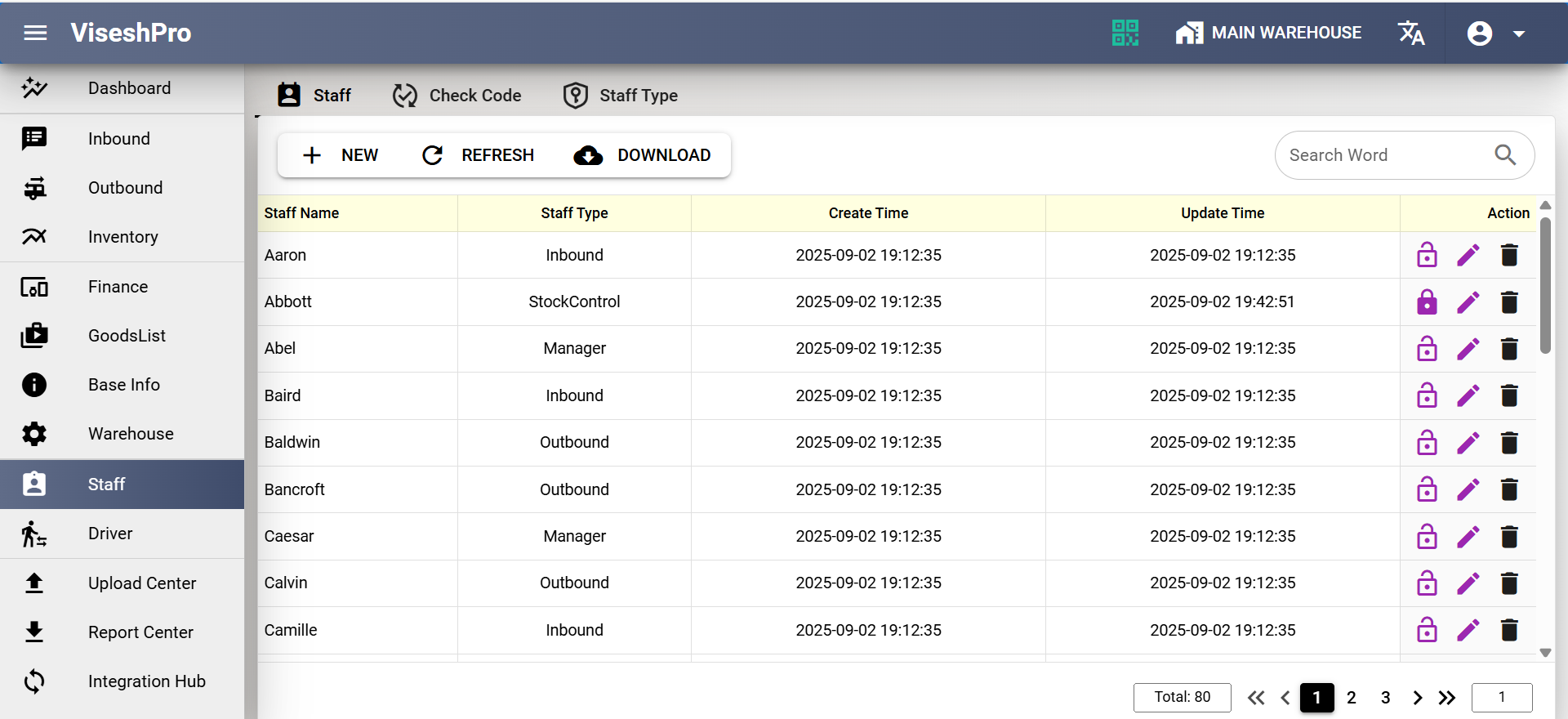
Staff Details
This screen shows a structured list of staff members along with their assigned roles such as Inbound, Manager, Stock Control, and Outbound.
Users can add new staff, refresh the list, or download records. It supports editing, access control, and role-based management, ensuring organized workforce operations in the warehouse.